

How much of your Intune tenant is deploying to nobody?
Meet Intune Housekeeper, a read-only cleanup report for your tenant.
Intune can tell you whether an app or a policy is assigned. That part's easy.
What it won't tell you is whether the assignment makes any sense. A compliance policy whose only assignment is an exclusion deploys to nobody. A test profile someone forgot on All Devices looks exactly as healthy as everything else. And an unassigned app might be junk, or it might be the rollback copy you'll need on Friday.
Answering that means going through apps, profiles, compliance policies, scripts and remediations one blade at a time. Nobody does that, so the clutter quietly piles up.
I got tired of clicking, so I built Intune Housekeeper. It reads your tenant through Microsoft Graph and gives you one Excel worklist across all of them: what's worth cleaning up, why, and what to do about it.
Even though we try our best to do cleanups of stale objects in Intune, we were still surprised when we first run this on our production tenant at my work.
What you get
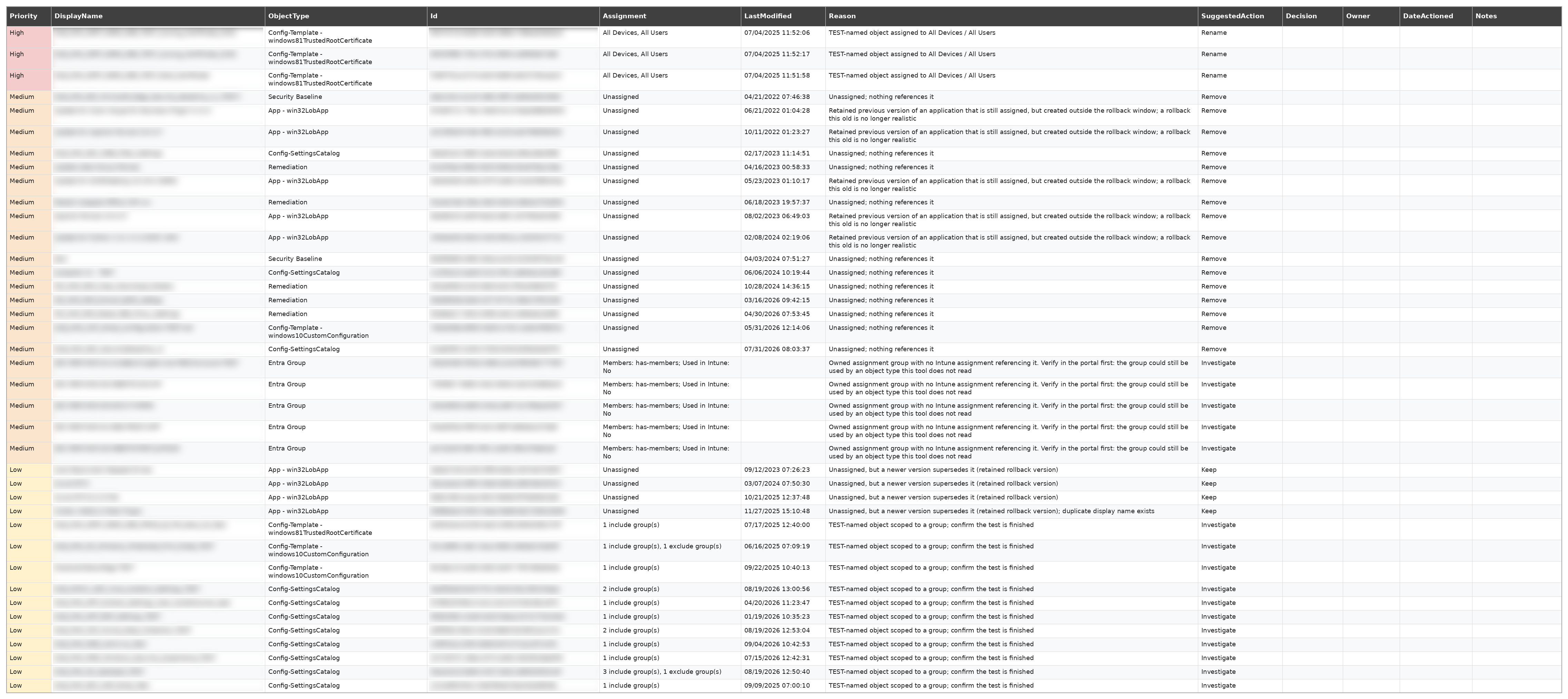
One workbook. The sheet that matters is the Worklist: every object you should look at, already sorted, each with a reason and a suggested action. There are empty columns on the right for writing down what you decided, so the file doubles as a tracker you can hand to a colleague.
Rows are colored by priority. Red means what's deployed doesn't match what someone intended, like a test policy sitting on All Devices. Orange is the cleanup queue. Yellow is "probably keep, but have a look". The Summary sheet shows where everything landed:
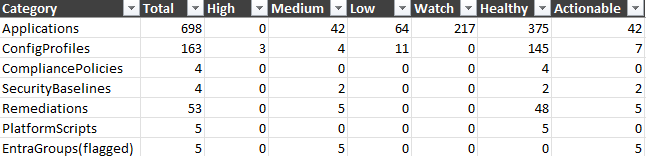
For now it's Windows only, plus an optional check for Entra assignment groups that are empty or that nothing seems to use.
It only reads
Intune has no recycle bin. Delete the wrong policy and it's gone, unless you have a backup. So the module only reads. Every change is yours to make, in the portal, after you've looked at it.
Read-only doesn't make a report safe on its own, though. Early on, a bug had it printing "Remove" next to things that should have stayed. The tool couldn't delete anything, but if I'd worked down that list in the portal, I would have. Most of what follows is about the report not giving you bad advice.
Try it in two lines
You'll need PowerShell 7 on Windows. Then:
Install-Module IntuneHousekeeper -Scope CurrentUser
Export-IntuneHousekeeperReport -UseGraphPowerShellApp -TenantId '<tenant id>'
-UseGraphPowerShellApp signs in through Microsoft Graph Command Line Tools, the same app Connect-MgGraph uses by default, so there's nothing to register for a first look.
PS C:\GitHub\IntuneHousekeeper> export-IntuneHousekeeperReport -UseGraphPowerShellApp -tenantID "YourTenantID"
Microsoft.Graph.Authentication 2.39.0 loaded.
Sign-in: Microsoft Graph Command Line Tools (built-in). Suited to trying the tool; for regular use, register your own read-only app as described in the README.
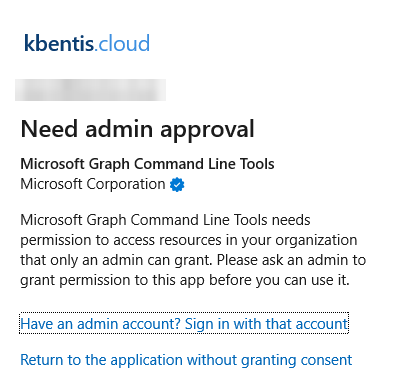
The first run in a tenant may ask an administrator to consent to read-only permissions for this Microsoft app. That consent is tenant wide and shared with other scripts that use the app.
Connecting to Microsoft Graph (delegated)...
WARNING: Note: Sign in by Web Account Manager (WAM) is enabled by default on Windows. If using an embedded terminal, the interactive browser window may be hidden behind other windows.
Connected as admin@contoso.com
Test-object detection skipped: no -TestNameRegex supplied. Objects left over from testing will not be flagged. Pass your own naming convention to enable it.
Collecting applications...
Collecting configuration profiles (templates)...
Collecting configuration profiles (settings catalog)...
Collecting configuration profiles (ADMX)...
Collecting compliance policies...
Collecting remediations (deviceHealthScripts)...
Collecting platform scripts (deviceManagementScripts)...
Collecting security baselines (intents)...
Collecting owner-scoped Entra ID groups...
  Skipped: no -GroupOwnerUpns supplied. Pass the owner accounts whose assignment groups you want checked.
Writing Excel tracker...

Done. Decision tracker written to: C:\Users\Public\Documents\Intune-Housekeeper_20261004-1355.xlsx
Worklist items (High/Medium/Low): 1
The first run asks for consent. If you're trying this in a test tenant, you're probably a Global Admin there anyway, so tick Consent on behalf of your organization and accept.
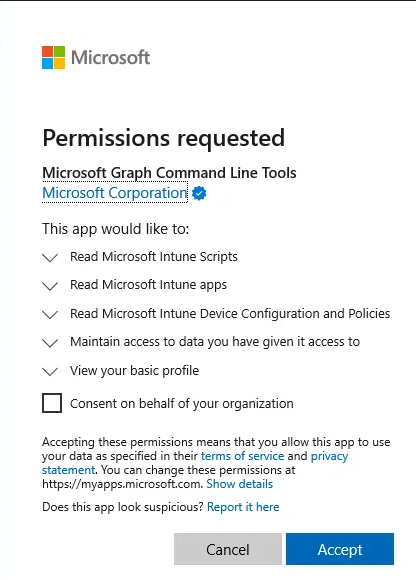
If you don't have the necessary privileges you get something like this:
In production, use your own app
I wouldn't do that in production, though. Consent to Graph Command Line Tools is shared by every script anyone in your tenant runs through it, so its token often carries far more than this tool needs, ReadWrite included.
Register your own app with six read-only permissions instead, and nothing in the token could change your tenant even if it tried. The README walks you through it in about five minutes. Save the IDs once and you're done:
Set-IntuneHousekeeperConfig -ClientId '<app id>' -TenantId '<tenant id>'
Export-IntuneHousekeeperReport
Three things that surprised me
lastModifiedDateTime lies (a little)
My first idea was the obvious one: flag anything nobody's touched in six months. The list came back several times longer than it should have been.
Turns out the timestamp only tracks edits to the policy itself. Move it from a group to All Devices and it doesn't budge. I checked:
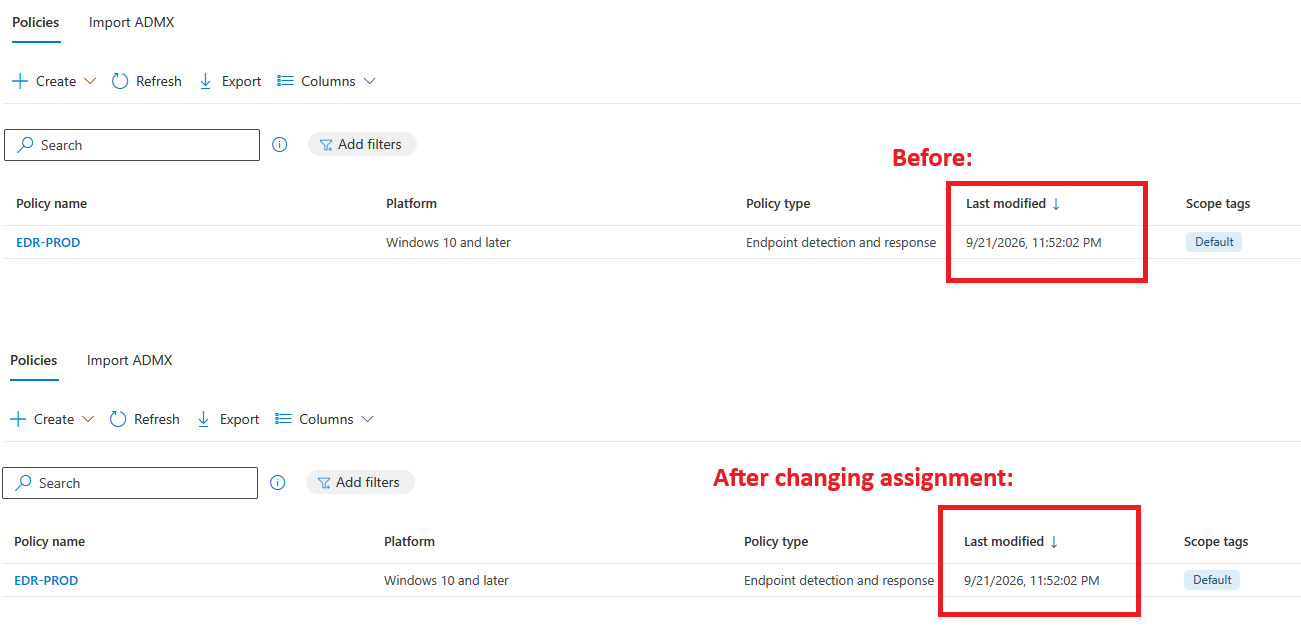
And it's not just assignments. Anything that republishes app metadata, like patch management tooling, bumps the date on apps you never touched. So the report shows the date, but never flags anything because of it.
Rollback copies look exactly like junk
Plenty of us keep the previous version of an app around in case the new one goes bad. Those copies are unassigned on purpose, which makes them look exactly like abandoned packages.
My first report told me to delete them. All of them due to not having a supersedence relationship because of how we have set up app packaging in Intune using a third-party tool.
How I solved it:
If your packaging creates Intune supersedence, the tool just reads that. If it doesn't, it falls back to names and versions:
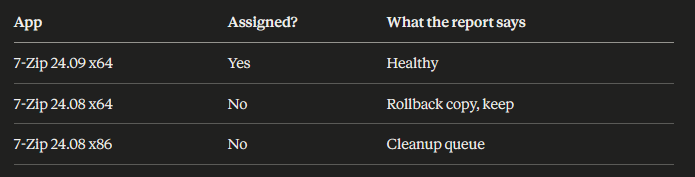
The older x64 package has a newer sibling that's assigned, so it's a rollback copy. The x86 one doesn't. Architecture is part of the match, so an x64 package never vouches for an x86 one.
Rollback copies don't get a free pass forever, though. Nobody rolls back to a build from two years ago, so after 12 months (default value: you can change that) they go back in the queue, still labelled so you know what they are.
"TEST" matches more than you think
The tool can flag leftover test objects by name. My first version shipped with a default pattern: anything ending in -TEST.
That works right up until your tenant names things TEST-Wifi or Wifi_TEST. Then you get zero findings, and zero findings doesn't look like "this check didn't work". It looks like "you're clean".
So there's no default anymore. You give it your own convention, and the run tells you how many names matched, so a wrong pattern is obvious.
If you write one, anchor it. A plain test also matches Latest and Attestation, and I really didn't want a Device Health Attestation policy on All Devices showing up as a red "leftover test object" at the top of somebody's list. This one behaves:
-TestNameRegex '(^|[-_ (\[])TEST([-_ )\]]|$)'
What's next
The thing I want most is spotting assignments that point at empty or deleted groups. They look perfectly healthy in the portal while deploying to nobody, which is arguably worse than being unassigned. macOS, iOS and Android are on the list too.
If you want the long version of why things work the way they do, the design notes on GitHub have it.
And if you run it, I'd love to hear what it found. Open an issue on GitHub or find me on LinkedIn.